


This how‑to shows how to retrieve users from a tenant based on filter conditions, such as “country” or “department”, using CoreView.
While the Microsoft 365 Admin Center or Entra portal can provide a list of all users, they do not offer the ability to apply these filters directly. For example, if you need a list of all users in the HR department, the current process requires exporting all users to Excel and filtering the Department column — a time‑consuming task, especially in large environments.
With CoreView, you can filter your user list using many different parameters. Let's see the steps to achieve this:
- Select “Reports > Users > Active users”. This will display all the users available in the tenant.

- Next, open the “Columns” dropdown and pick all the columns you want to get information from. You'll use this information later when you set up the filter condition.
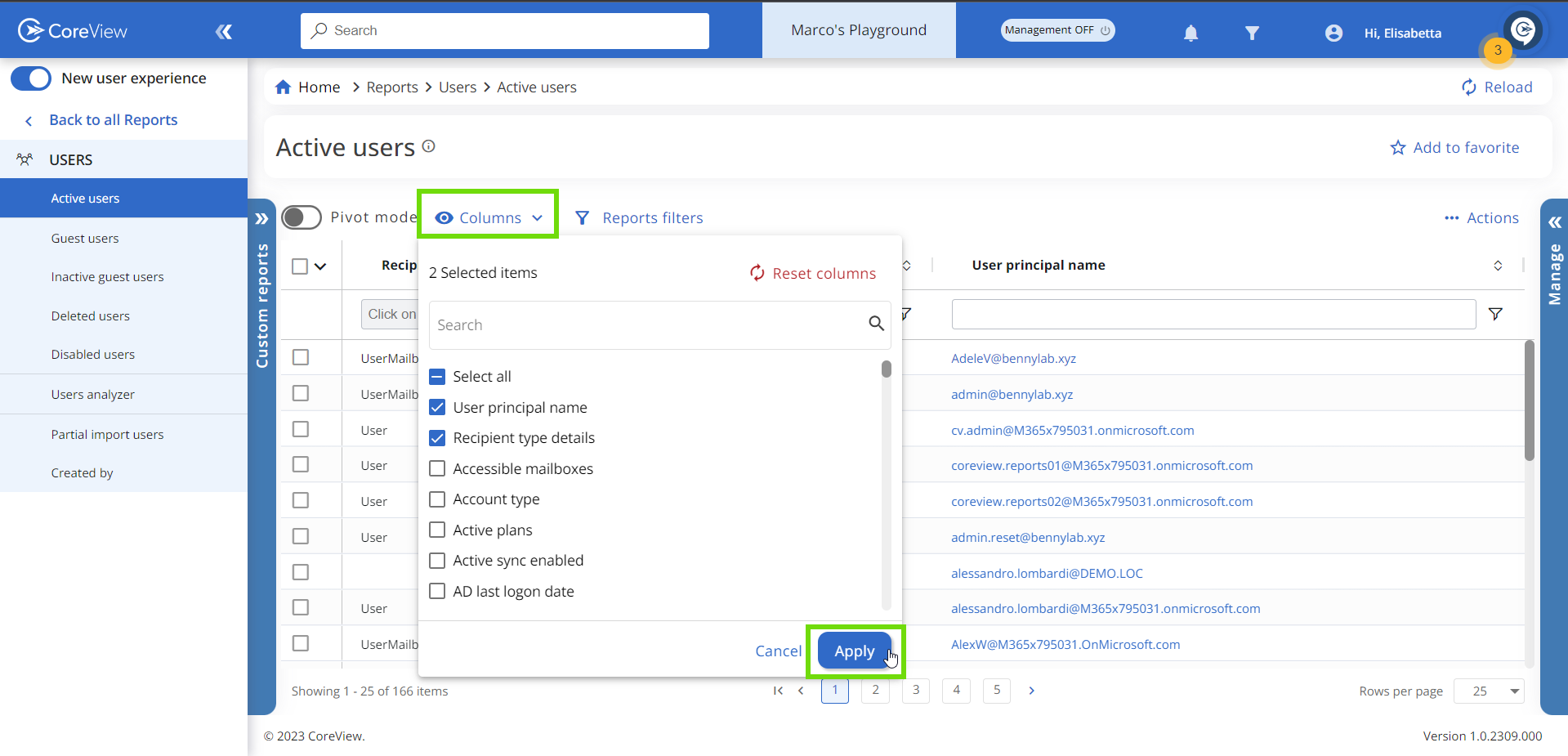
- Click “Apply”. This action will load the user report, showing all the columns you selected.
- Now, you can set up a filter based on what you need. For example, if you want to see all the users from a specific domain, just use “Contains [domain name]”. You can also use “Domain equals [domain name]”. This will show all the users from that domain.
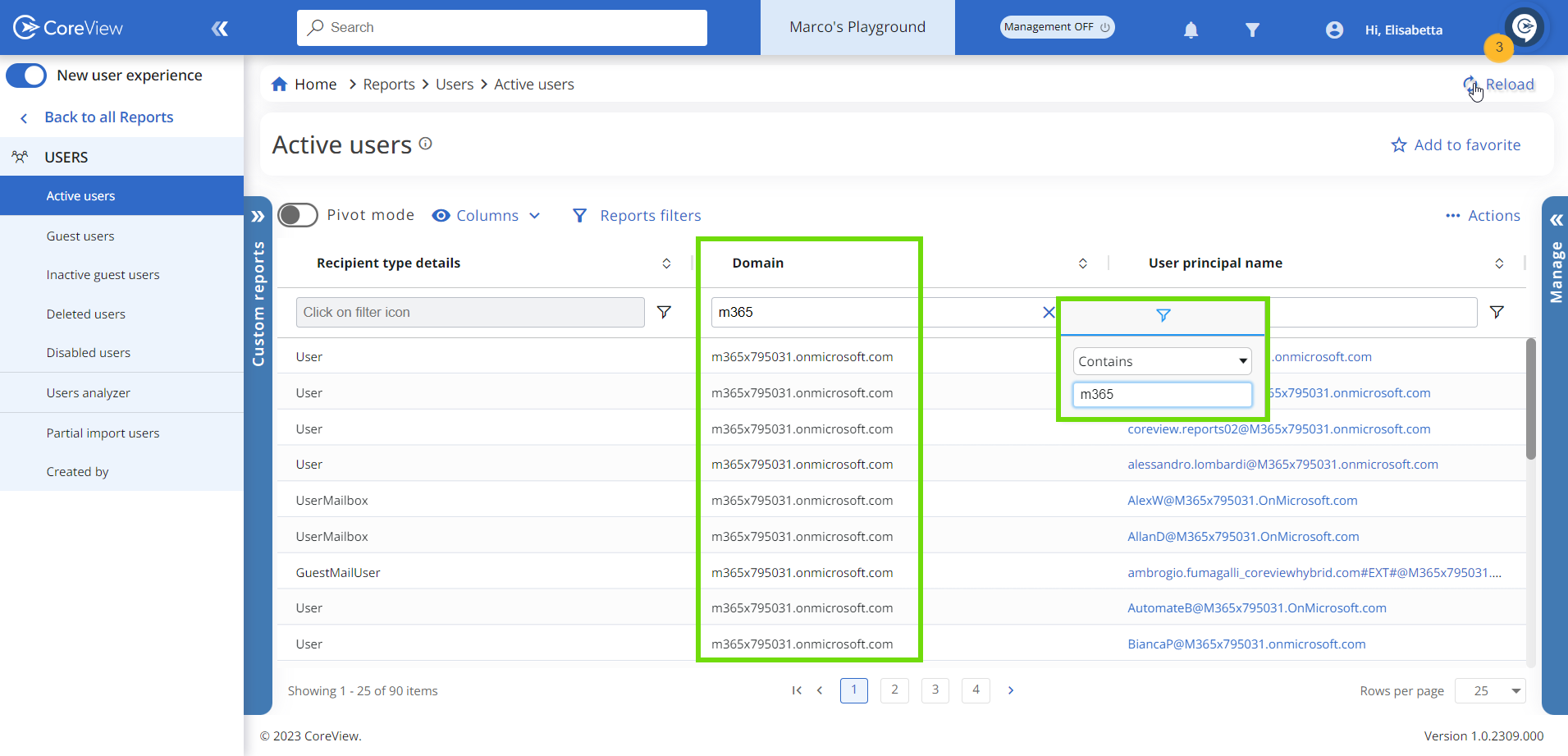
- In the same way, you can filter any column based on what you need. After filtering, you can export the results to an Excel file or take action on them directly from the report.
Pivot charts
If you prefer to view your filtered data in an aggregator format instead of a table, just enable the “Pivot mode” toggle located in the top left corner. For further information, please visit this article: Pivot mode in reports.